
[Linux] Deploying Debian Packages
Once you have created a Debian package, you need to create a PPA and deploy it.
This guide summarizes the process of creating a PPA and deploying it using Launchpad.
Written based on a Git repository.
Deploying Packages
To deploy a package, you must first have a PPA.
The general deployment sequence is as follows:
1. Create a Launchpad account
2. Create a PPA
3. Create a project
4. Import code
5. Create a recipe
Creating a Launchpad Account
A PPA is created after setting up a Launchpad account.
After creating an account, visit the following page:
https://launchpad.net/~{user_name}
This is my account page.
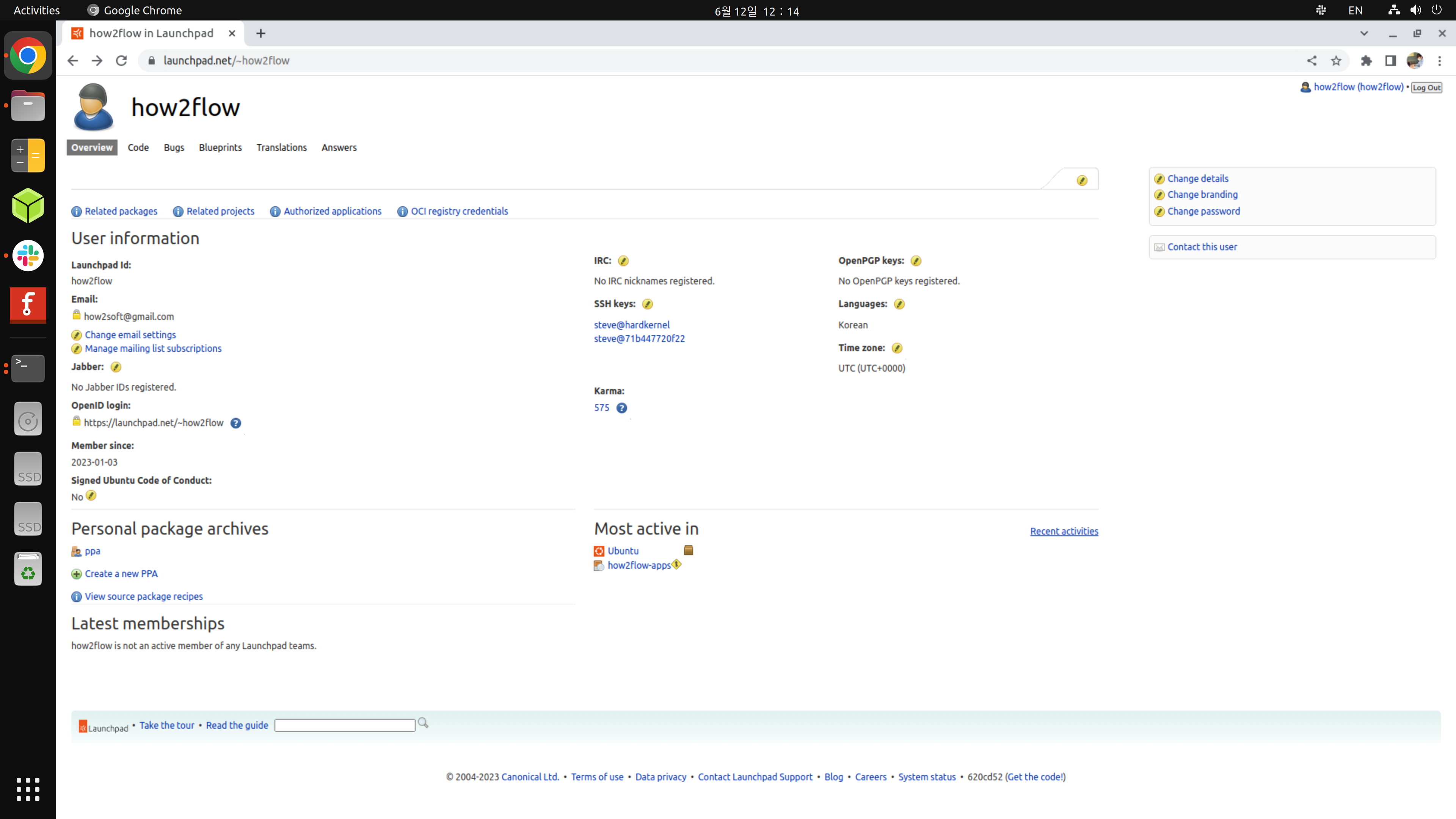
[picture 1] Launchpad Overview
Click Create a new PPA at the bottom left to create your PPA.
Creating a Project
You need to create a project to manage your packages.
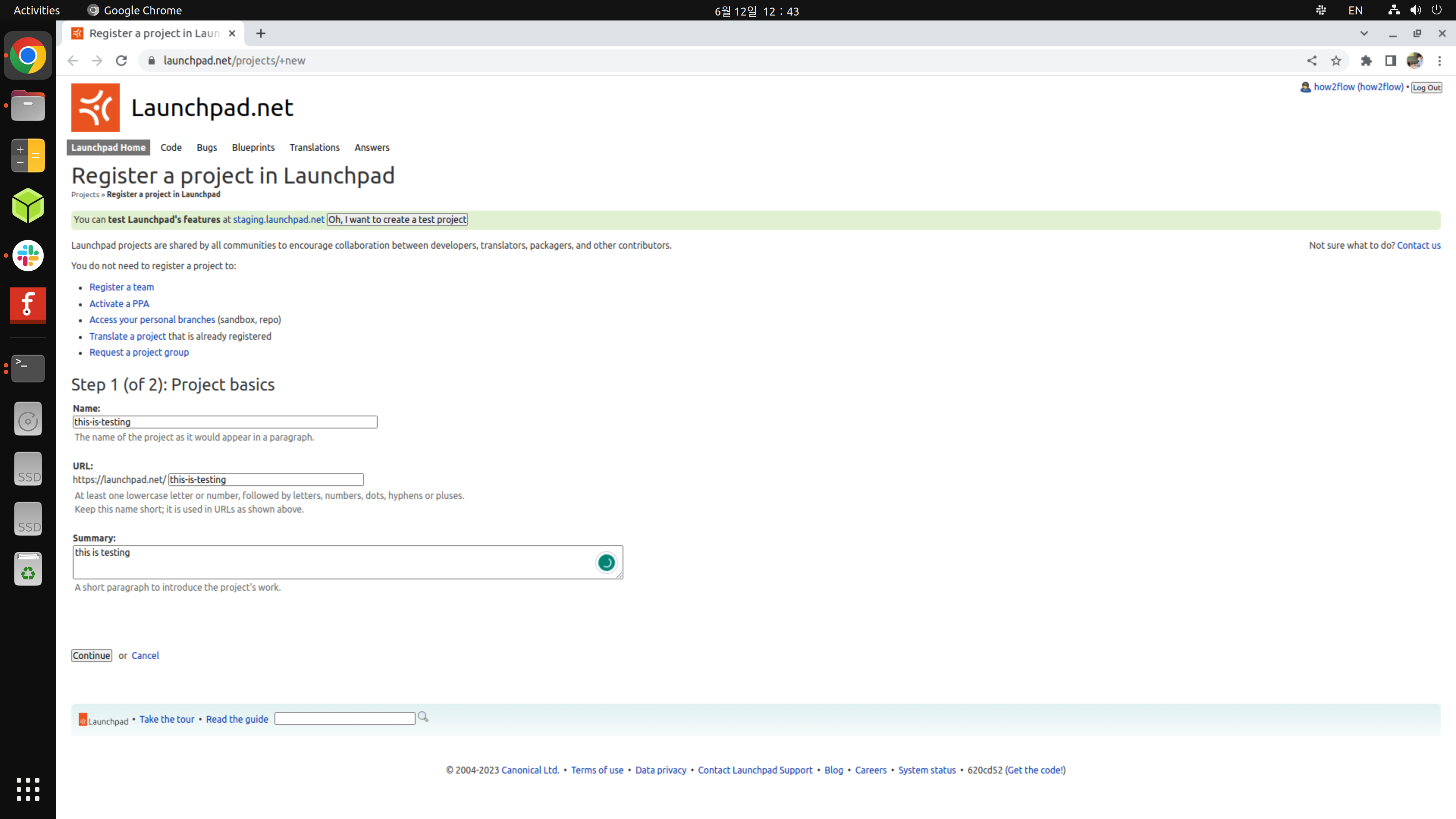
[picture 2] Launchpad Project
The image above shows the process of adding a project named this-is-testing.
Once completed, click the Continue button to proceed to the next step.
The “Check for duplication projects” page appears if the name is similar to existing projects.
You can either modify the name or click No, this is a new project to continue.
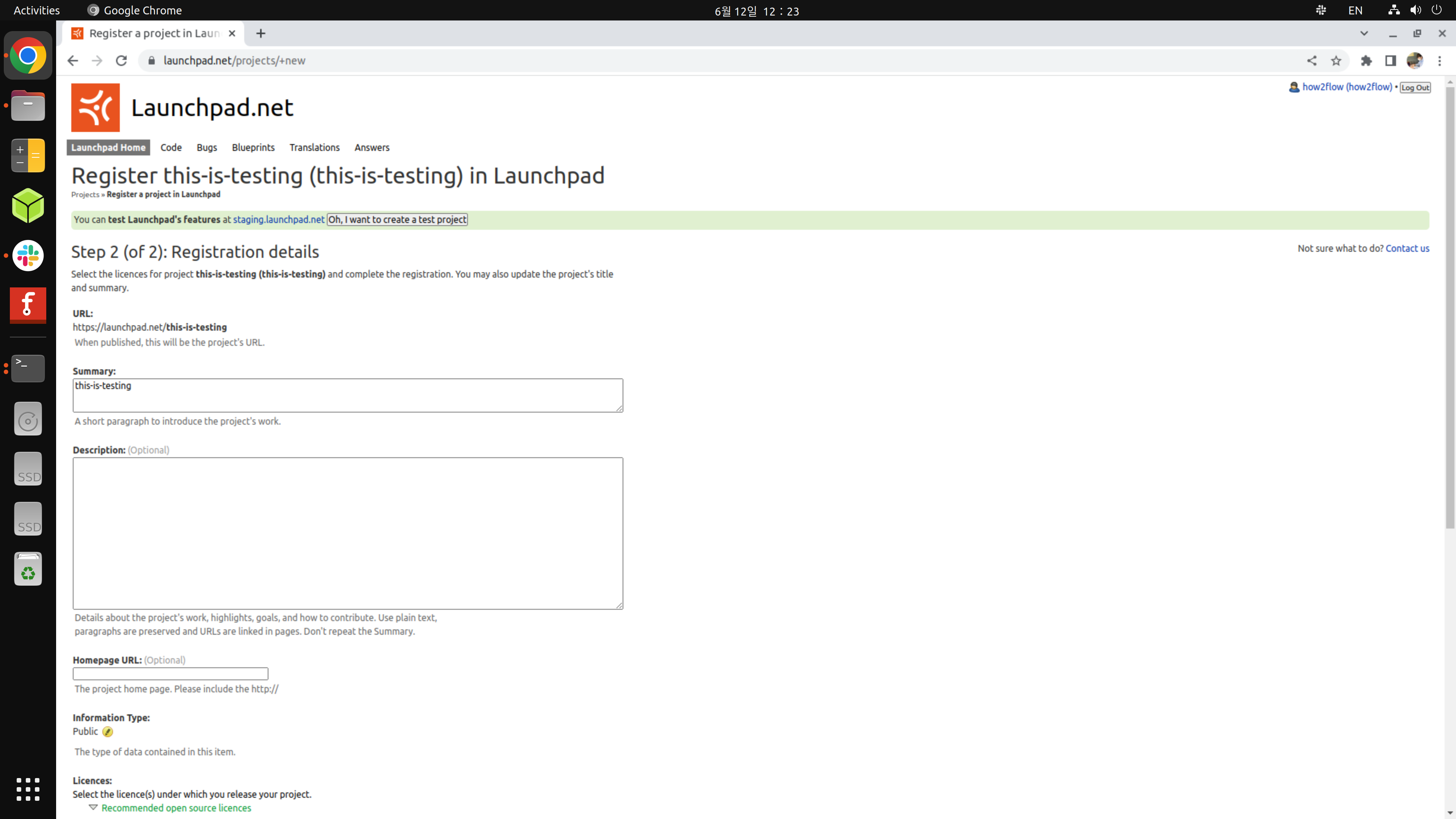
[picture 3] Launchpad Project Detail
This page is for additional project details.
Fill in the Description, Homepage URL, Licenses, etc.,
and click the Complete Registration button at the bottom to create the project.
Importing Code
Access the Launchpad code import page.
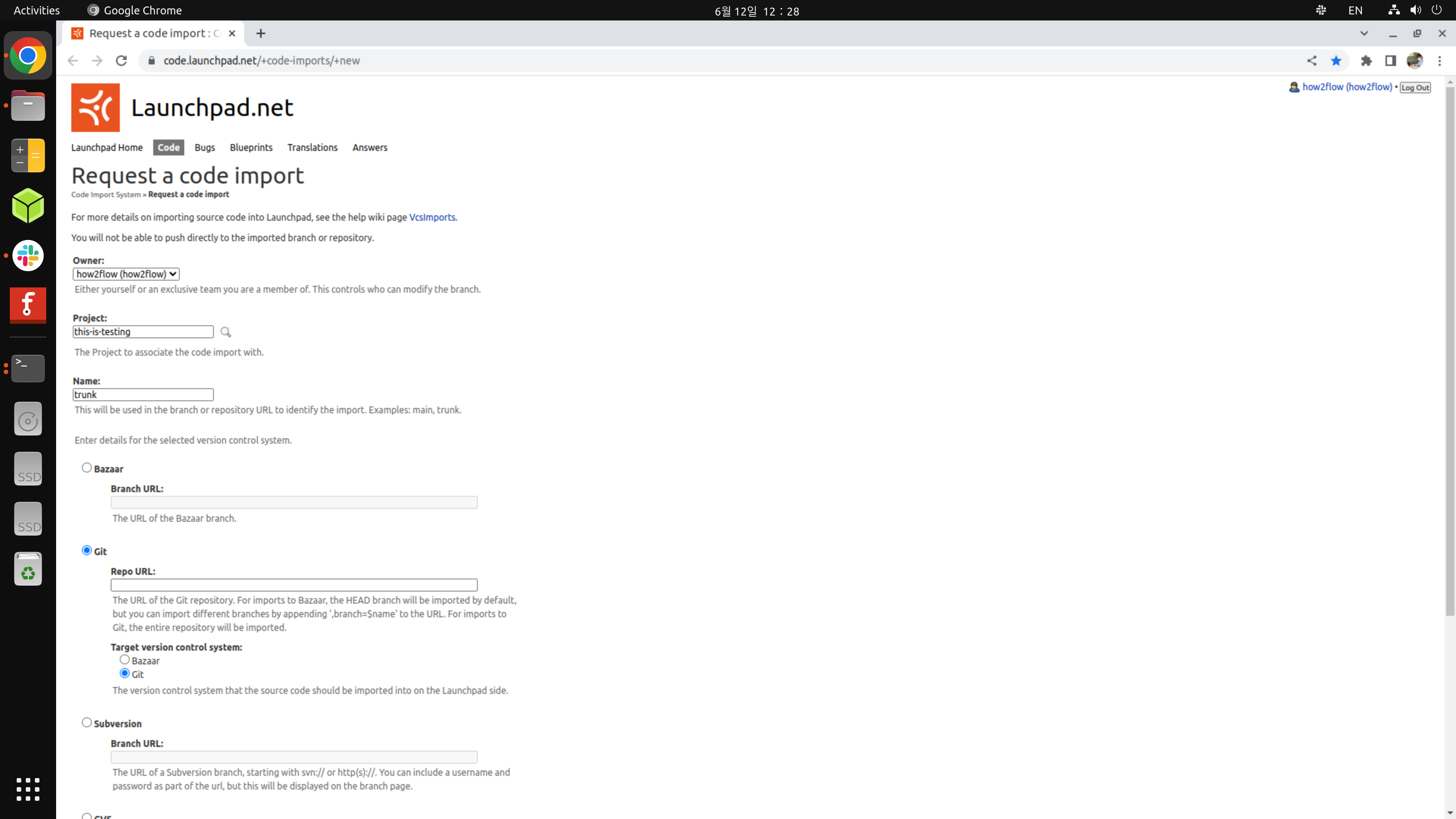
[picture 4] Launchpad Code Imports
Enter the project name created in the previous step into the Project field.
The image above shows Git as the selected option.
Choose whether to use Bazaar or Git for code management and provide the repository URL.
Complete the import by clicking Request Import.
Creating a Recipe
Access the package page to create a recipe.
The package page can be accessed from the repository list.
The following image shows the Git repository list before access.
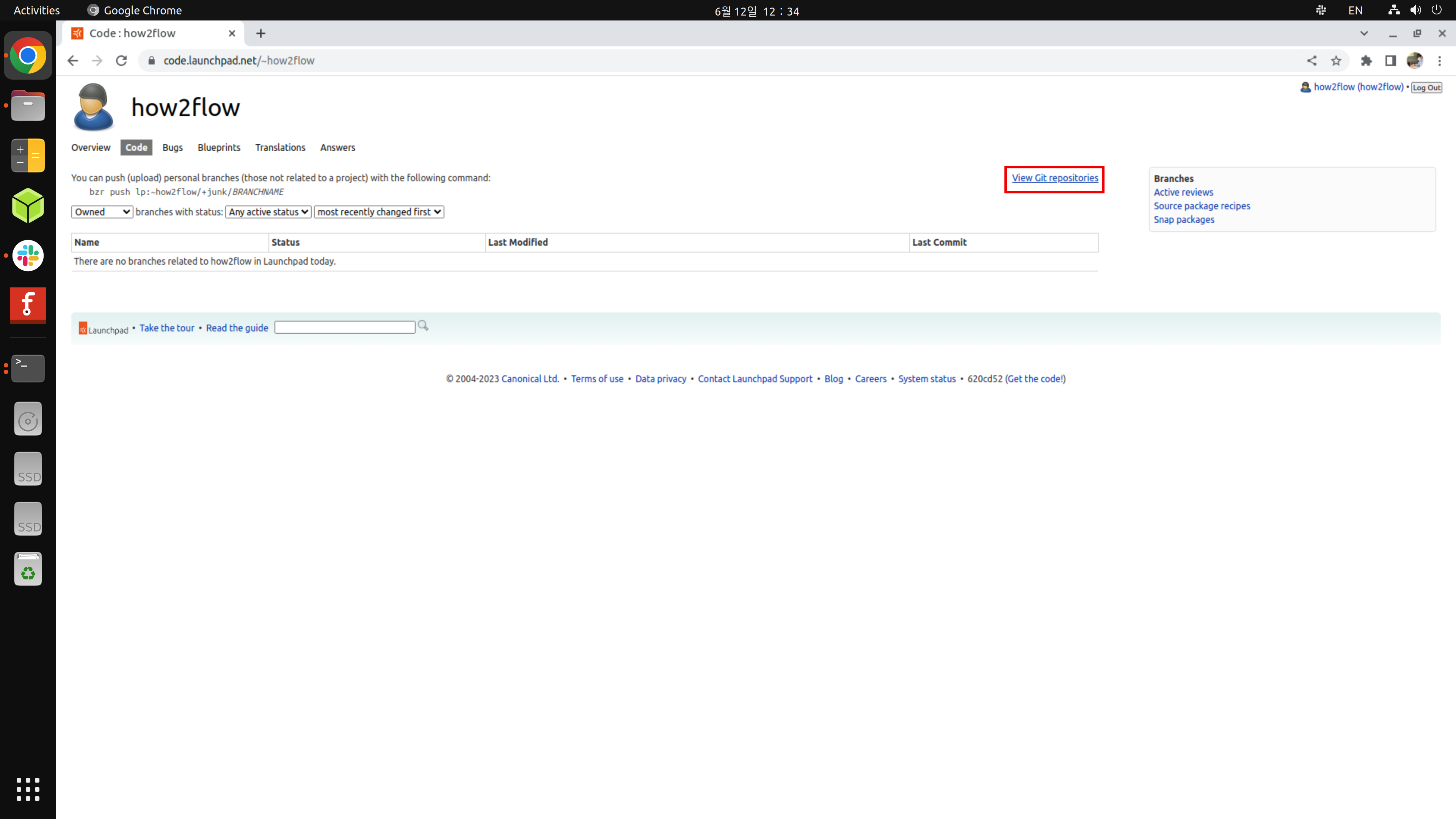
[picture 5] Launchpad Git Repository List
Access the package page through the repository list.
I accessed a package I’m already using, so your screen might look slightly different.
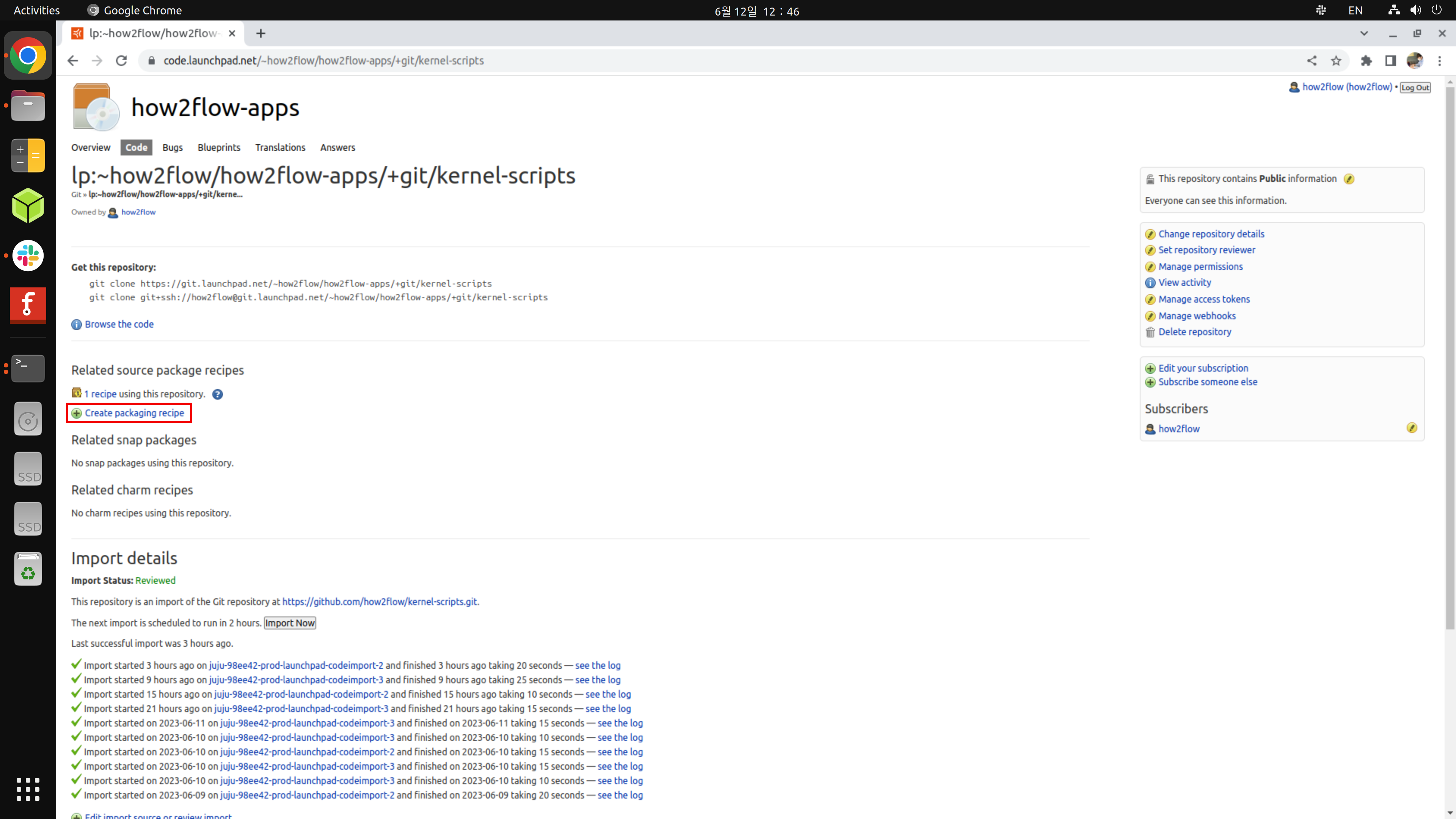
[picture 6] Launchpad Package Page
On the package site, click Create packaging recipe.
After accessing, the following will appear at the bottom of the page.
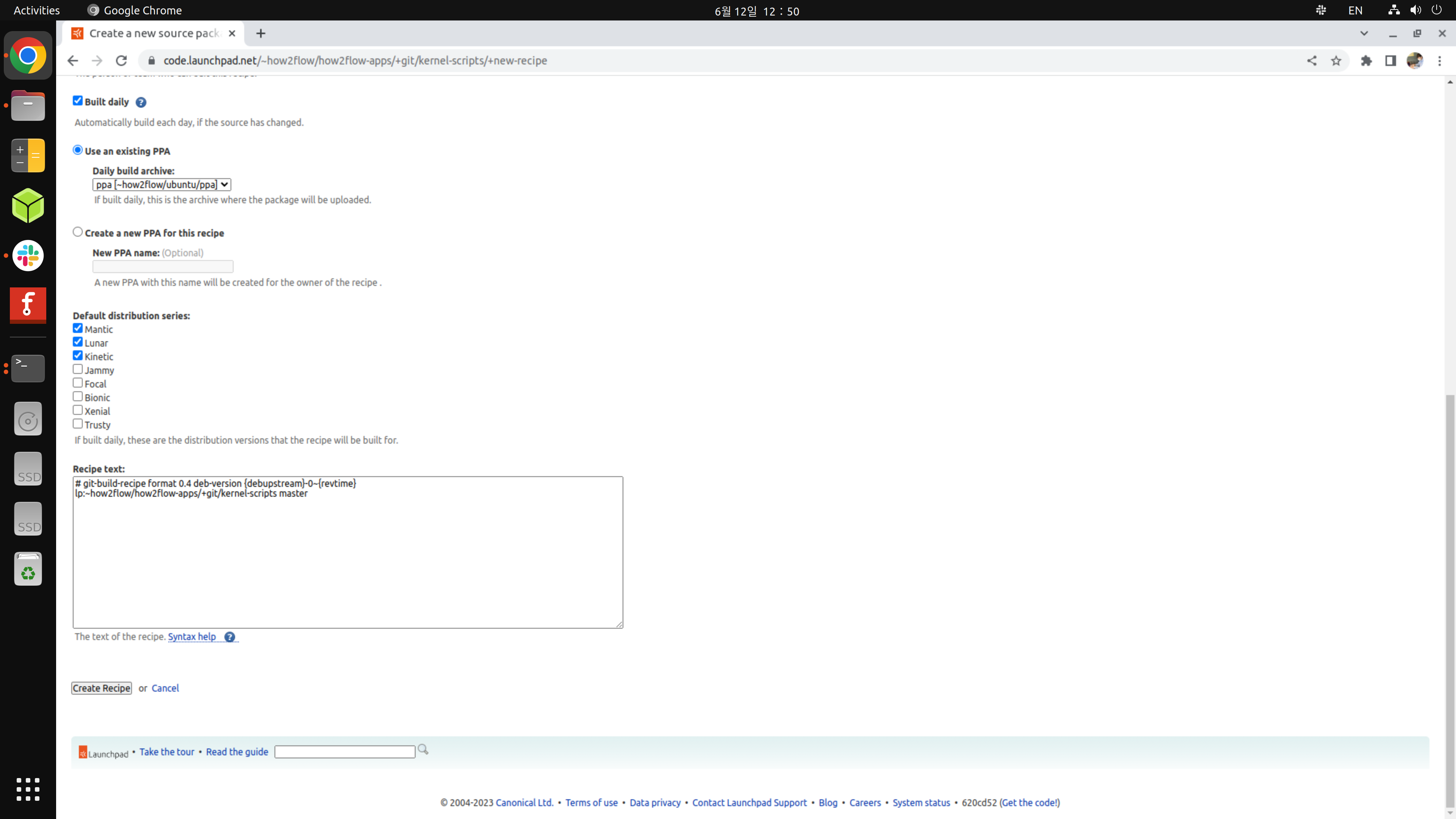
[picture 7] Launchpad Create packaging recipe
Enter the distribution and Recipe text at the bottom of the page.
Write the Recipe text as follows:
# git-build-recipe format 0.4 deb-version {debupstream}-0~{revtime}
lp:~{user_name}/{project_name}/+git/{git_repo_name} master
Example:
# git-build-recipe format 0.4 deb-version {debupstream}-0~{revtime}
lp:~how2flow/how2flow-apps/+git/kernel-scripts master
Leave a comment