
[Linux] Using minicom on Ubuntu
This is a post about the apt package minicom.
A memo for basic usage settings
minicom
Minicom is a terminal program for Linux and Unix-like systems.
I mainly use it with a USB-UART module.
Installing minicom and basic setup
Install the apt package and set the basic options.
$ sudo apt-get install minicom
Run minicom.
$ sudo minicom
minicom: cannot open /dev/modem: No such file or directory
When running it, you may encounter the following error log.
minicom: cannot open /dev/modem: No such file or directory
If you google it, it says using the -s option solves it.
$ sudo minicom --help
Usage: minicom [OPTION]... [configuration]
A terminal program for Linux and other unix-like systems.

  -b, --baudrate         : set baudrate (ignore the value from config)
  -D, --device           : set device name (ignore the value from config)
  -s, --setup            : enter setup mode
  -o, --noinit           : do not initialize modem & lockfiles at startup
  -m, --metakey          : use meta or alt key for commands
  -M, --metakey8         : use 8bit meta key for commands
  -l, --ansi             : literal; assume screen uses non IBM-PC character set
  -L, --iso              : don't assume screen uses ISO8859
  -w, --wrap             : Linewrap on
  -H, --displayhex       : display output in hex
  -z, --statline         : try to use terminal's status line
  -7, --7bit             : force 7bit mode
  -8, --8bit             : force 8bit mode
  -c, --color=on/off     : ANSI style color usage on or off
  -a, --attrib=on/off    : use reverse or highlight attributes on or off
  -t, --term=TERM        : override TERM environment variable
  -S, --script=SCRIPT    : run SCRIPT at startup
  -d, --dial=ENTRY       : dial ENTRY from the dialing directory
  -p, --ptty=TTYP        : connect to pseudo terminal
  -C, --capturefile=FILE : start capturing to FILE
  -F, --statlinefmt      : format of status line
  -R, --remotecharset    : character set of communication partner
  -v, --version          : output version information and exit
  -h, --help             : show help
  configuration          : configuration file to use

These options can also be specified in the MINICOM environment variable.
This variable is currently unset.
The configuration directory for the access file and the configurations
is compiled to /etc/minicom.

Report bugs to <minicom-devel@lists.alioth.debian.org>.
You can see that the -s option runs minicom in setup mode.
Besides -s, the -D and -b options are also frequently used.
Run it in setup mode.
$ sudo minicom -s
Then you will see a screen like this.
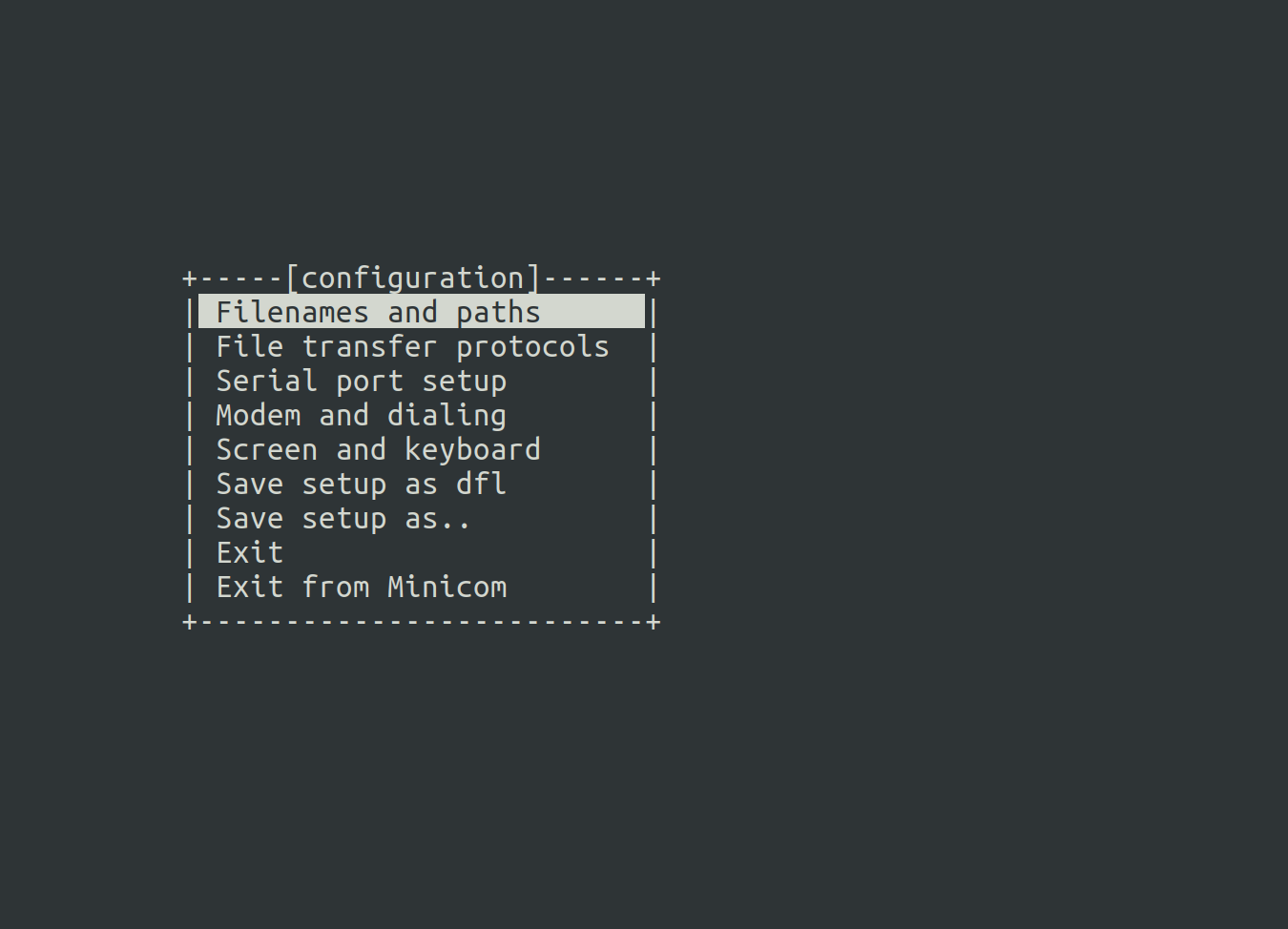
Here you can configure basic settings.
Since most can be changed with options anyway, I only changed a few simple things.
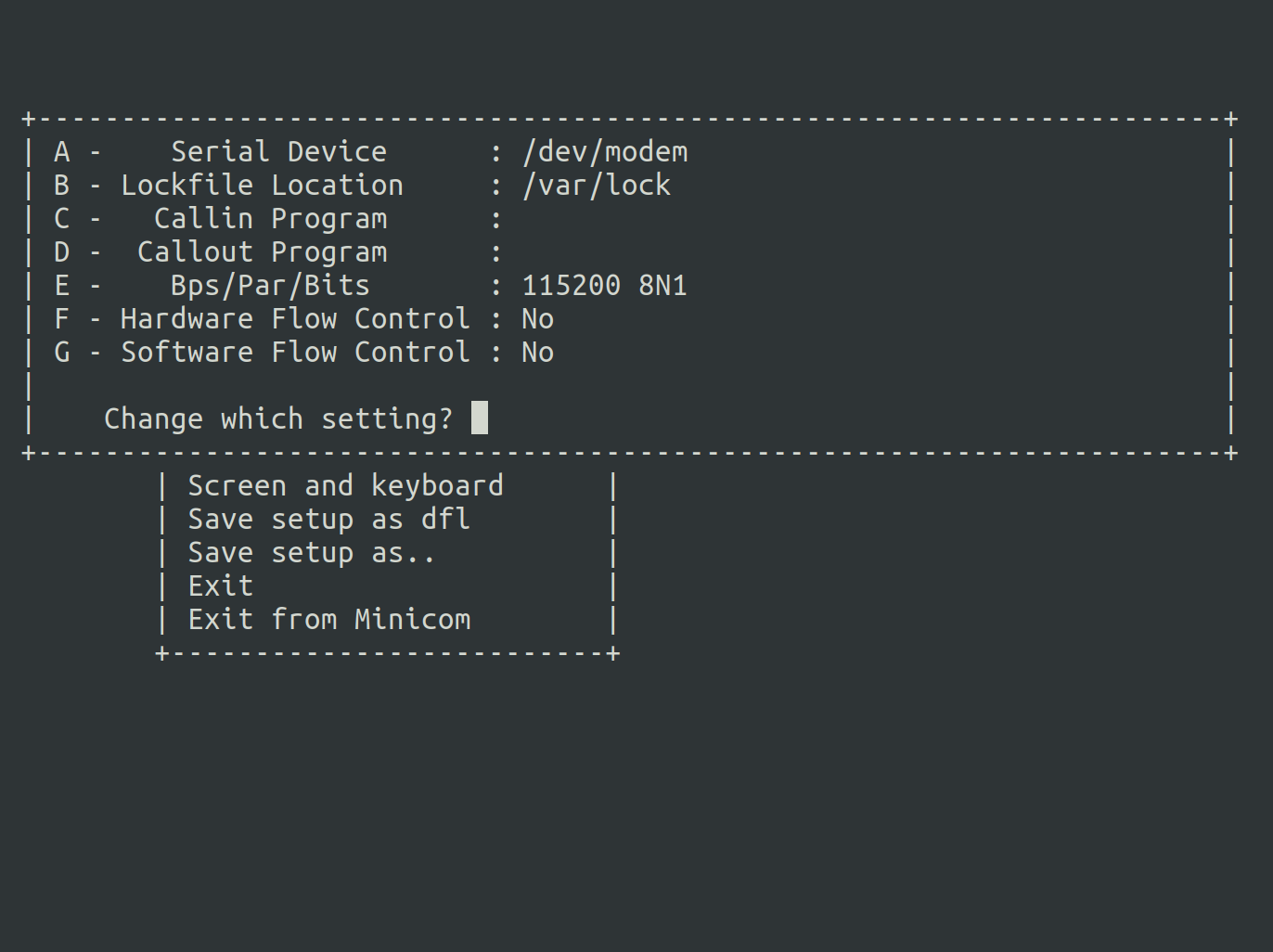
In Serial port setup, disable both H/W and S/W Flow control, and
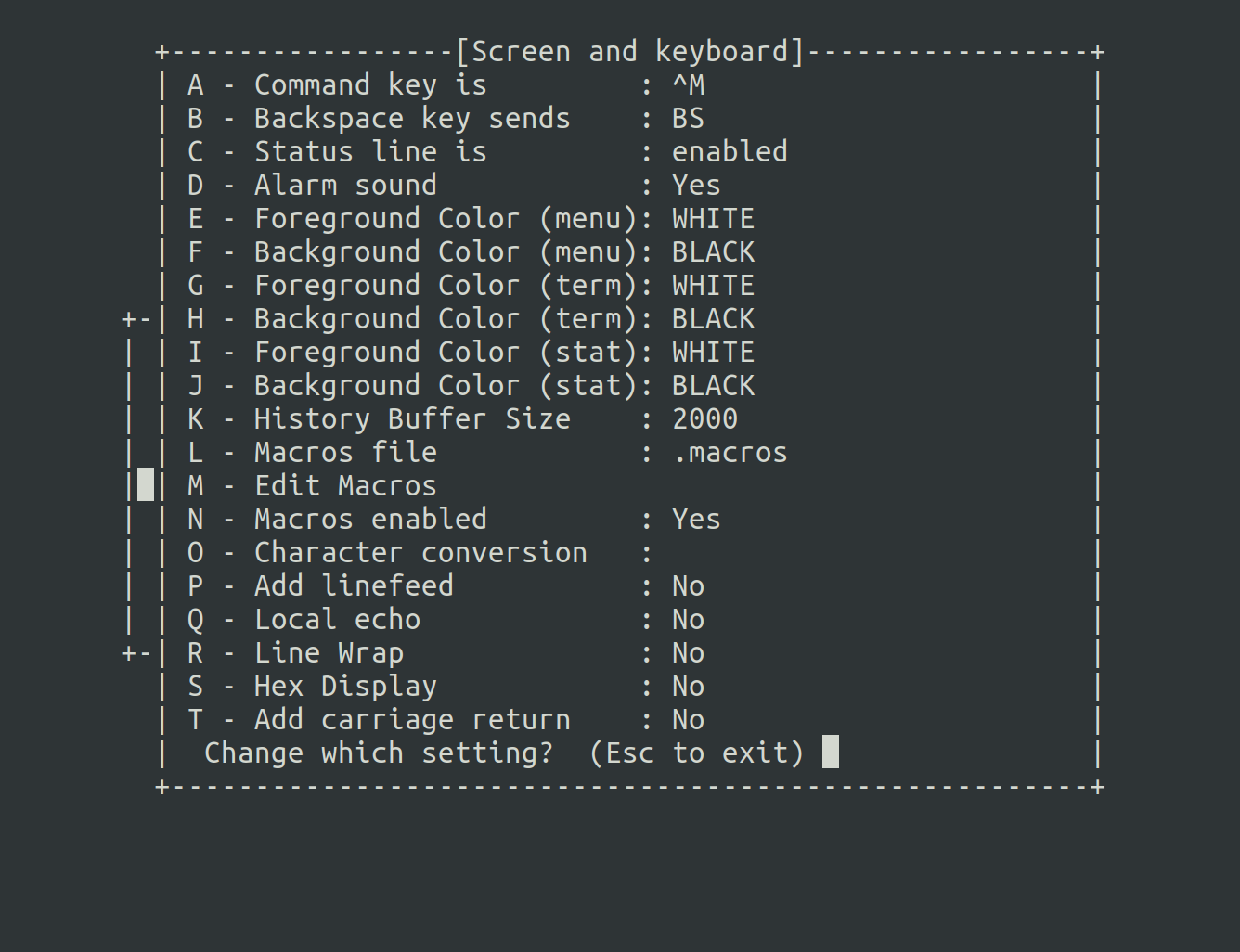
In Screen and keyboard, I changed the command key to Ctrl + M.
Flow-Control is used for synchronous communication only when the buffer in UART is at maximum. A representative example is RS232.
H/W flow-control is only allowed when using cts and rts pins.
S/W flow-control means it will be implemented via a program.
Since neither applies, set them all to No.
You can use any command key you prefer.
I changed it because tmux’s prefix overlaps with minicom’s default command key.
Now, save the settings with Save setup as dfl and exit.
What you need when using minicom is the connected device and the bitrate.
The connected device is set to /dev/modem by default, but
looking at the help message, you can set the device with the -D option.
Running minicom
I used a USB-UART module.
By plugging and unplugging the device from the desktop hub, I check which device node it is.
For me, /dev/ttyUSB0 appears and disappears.
Once you find the device to connect to and decide the desired bitrate, open a terminal using minicom.
Let’s assume the bitrate is 115200.
device: /dev/ttyUSB0
bitrate: 115200
$ sudo minicom -D /dev/ttyUSB0 -b 115200
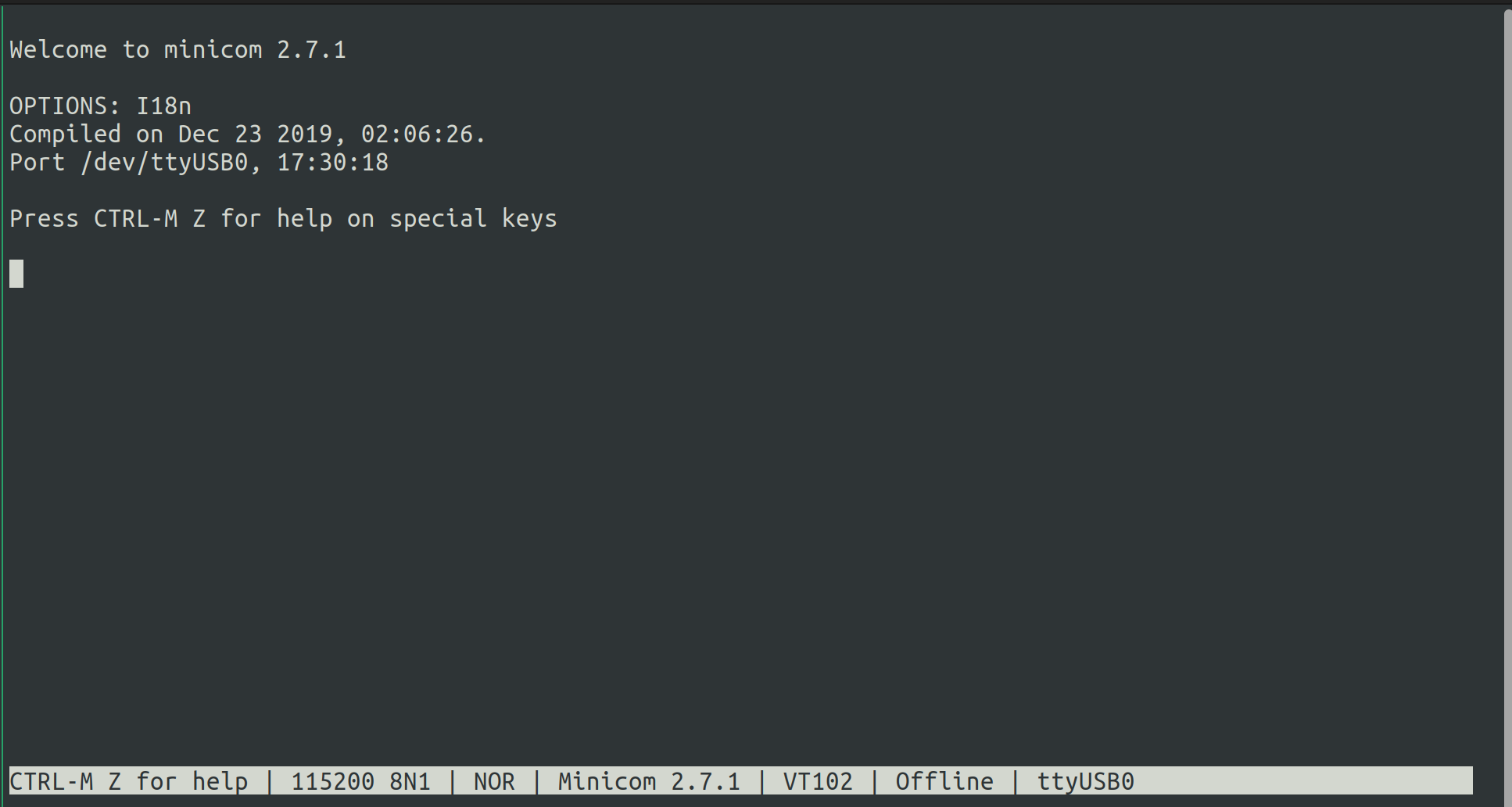
This is the screen after a successful connection.
You can open the minicom summary with the Ctrl + Z combination and configure various additional settings.
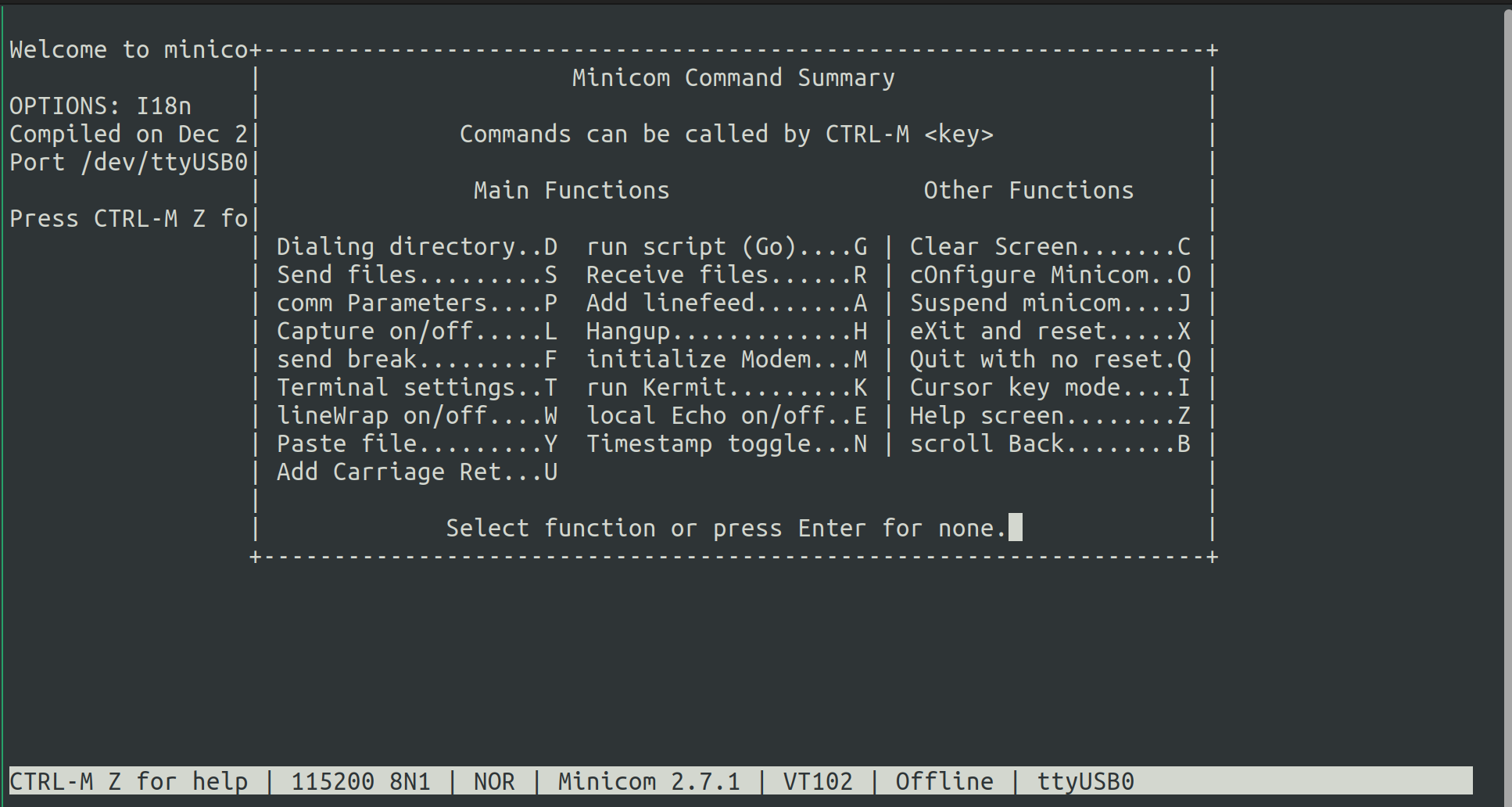
I pressed the W key to turn LineWrap on.
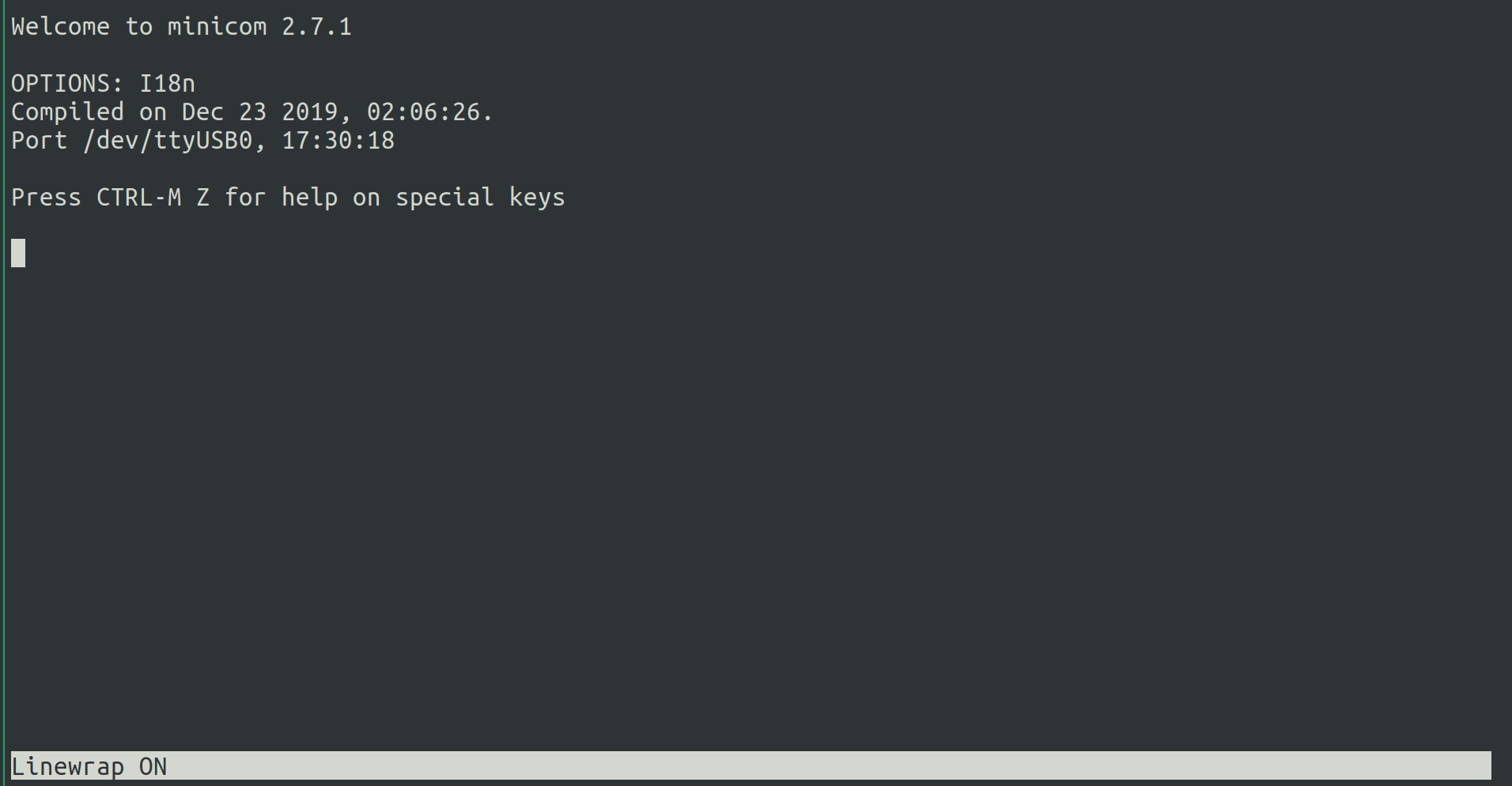
It is applied when Linewrap ON is displayed at the bottom.
You can also add the -w option when running minicom.
Summary
- sudo apt-get install minicom
- sudo minicom -s
- Set all Flow-Control to No and change the command key. (Ctrl + M)
- Connect to the device using minicom with the -D and -b options.
- Turn LineWrap ON using the Command key + Z combination, or add the -w option when connecting the device.

Leave a comment